List Editor
Clooz uses an suggestion function for text fields through the Clooz program which are likely to have the same content used multiple times. An example of this would be occupation fields. Lists are generated for such fields based on all the different values you have entered thus far in other occurrences of that type of field. As you enter text in the field, if the letters entered match an entry in the list, the rest of the word or name is filled out automatically. If you type further, the process continues and the filled out portion may change if a different match is now applicable. All of this is designed to save you keystrokes as you transcribe documents. However, sometimes you may enter the wrong characters, or decide a different form of the word is more appropriate. The trouble is the wrong form or spelling of the text keeps coming up when you are entering text in other similar type fields. This is when the List Editor becomes useful. You can change the text that appears in all the fields that had used the original text.
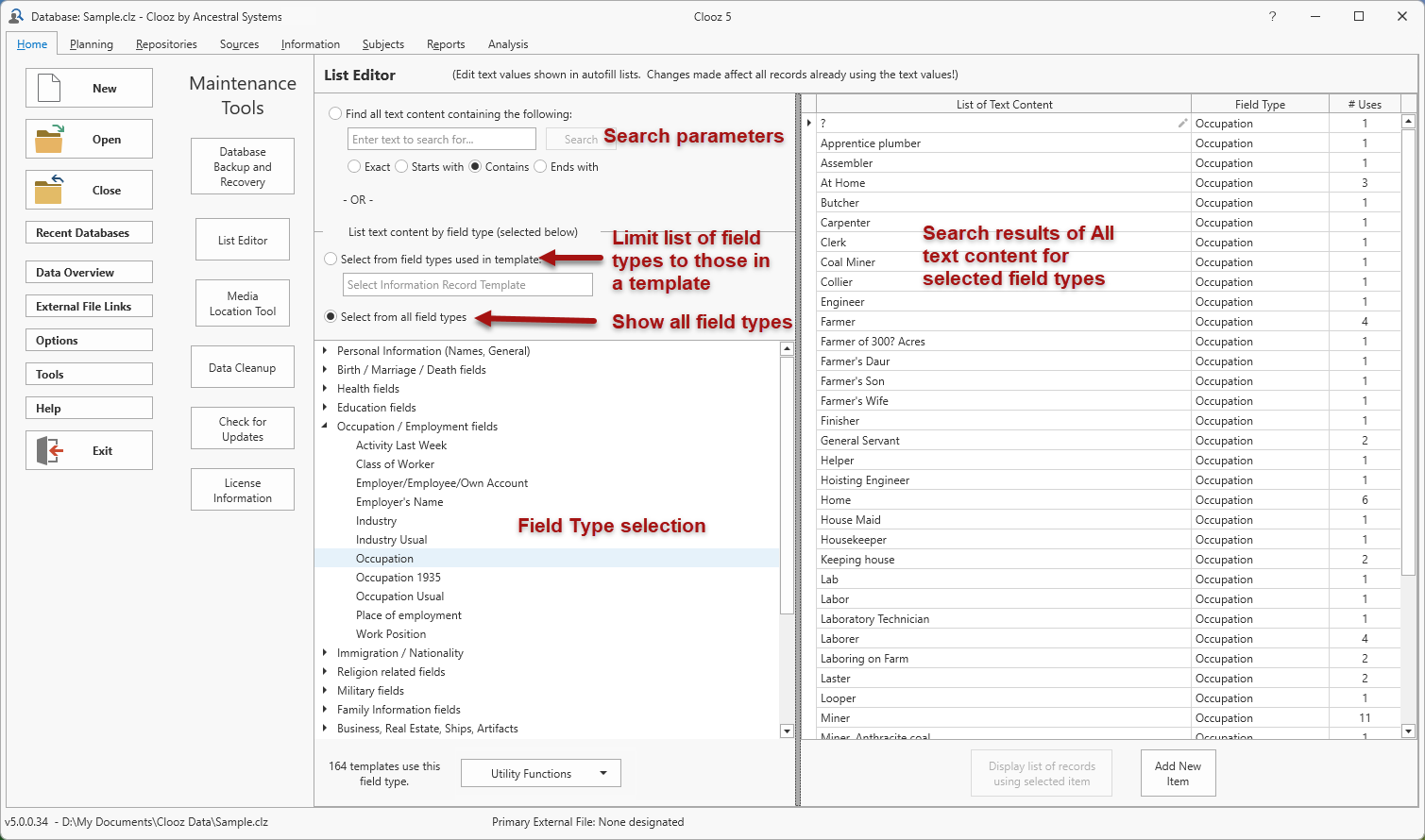 This editor is one of the Maintenance Tools on the Home tab page. Display the Maintenance Tools by clicking the Tools button, then switch to the List Editor by clicking the List Editor button on the tools screen.
On the left half of the List Editor two different ways are provided in which to locate the text you are looking to change:
- A search function for some text which could occur in any type of field, or
- Selection field type for which all text values are listed for you to choose from.
The right half of the List Editor is where the results of the search (if the search method was used) or all text content for the selected field type.
Searching all lists for text
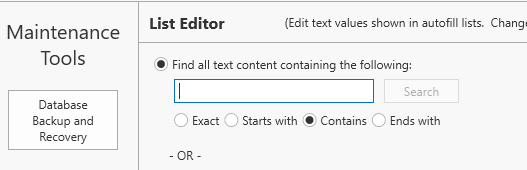 To search for all occurrences of a certain text content, select the radio button for finding all text content, and enter the text you are looking for in the edit box. Select the desired search parameter for how the match is to be determined. These matches are not case-sensitive.
After entering the text and setting the search parameter, click the Search button to perform the search. View the results on the right side of the editor.
Listing all text content for a certain field type
To see the complete list of text content used in a certain field type, do the following:
-
Select whether you want for choose from only those field types used in a template (Information Record
 Information Records in Clooz hold the content information coming from a document or another source. The Information Record differs from a Source record which contains most of the citation information that describes the document or the Repository record that is referring to the facility or an online service where the document was found.) you select, or choose from all field types used in all of Clooz's Information Record templates.
 -
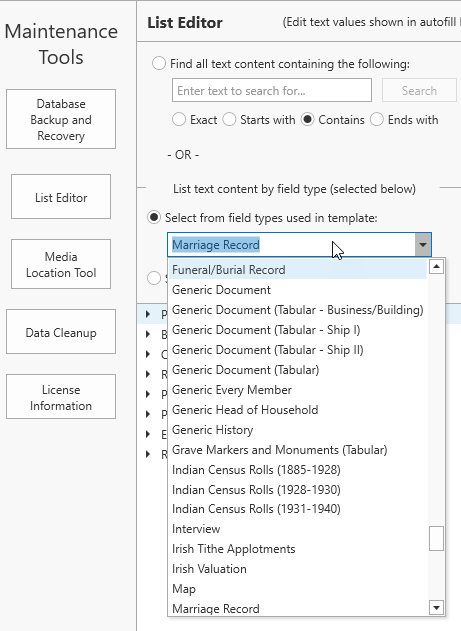 If you choose the list of field types for a given template, click in the selection box and then click the down arrow to display the list of all Information Record templates. Select the template you are interested in.
 -
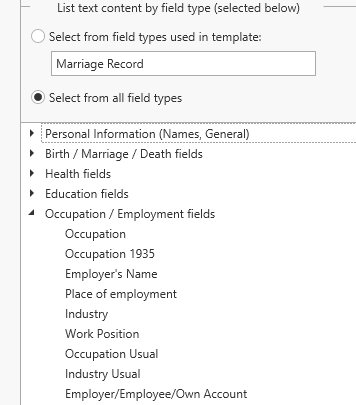 Based on your prior selection, the list of field types will appear in the bottom portion for you to choose from.
 -
Once you select a field type, the list of all text used with that field type will appear on the right side of the editor.
Editing the text content of a list item
To edit the text for a list item, click on that item in the List of Text Content (right side of List Editor), and do the following:
-
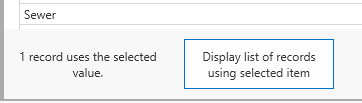 Ensure you are aware of all the places your change will be affecting. Changes made to text in this list will immediately affect all Information Records already using the text value. In the bottom panel, note the number of records using the selected value. To see a list of those records, click the button provided.
 -
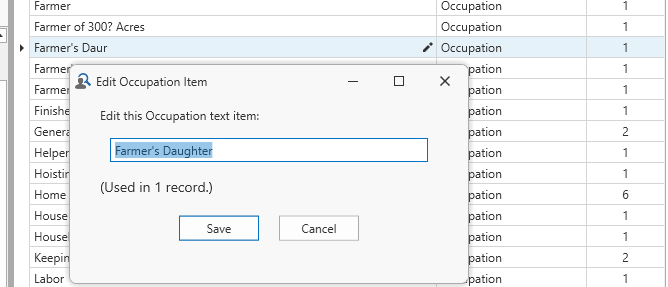 Once you are sure the change is appropriate, click on the edit button (pencil icon) on the row of the list you had selected.
 -
Proceed to edit the text and then click Save (or cancel).
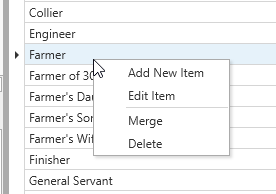 You can add a new text item to the list by clicking the Add New Item button at the bottom of the editor, or from the context menu by right clicking any of the list items.
The context menu also contains commands to merge two list entries (if there are duplicates), or delete an item. In the case of duplicate list items, use the merge function. Deleting a text item from the list will leave any fields which used that text blank.
Utility Functions
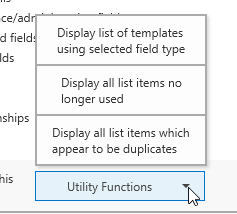 The List Editor provides several utility functions to help you understand the usage of different field types and possible issues in your text content.
Click on the Utility Functions button at the bottom of the editor to display a menu of available functions.
Obtain List of Templates Containing the Selected Field Type
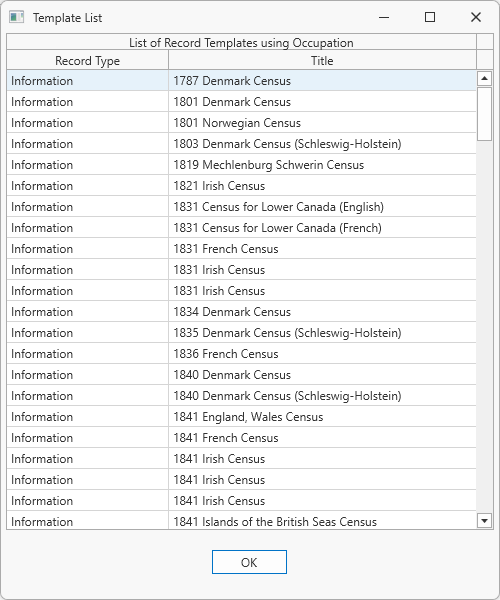 Selecting Display List of Templates in the utilities menu will pop up a list of all the templates which contain the field type selected in the field types list. If no selection is made, this menu item will be disabled.
You can also see the number of templates which use the selected field type in the bottom panel of the field type list.
Identification of Unused Textual Content
You can display all list text items which are not used in any Clooz records using the menu item provided. The resulting list of text items will appear on the right side of the window. You can then proceed to delete any of these you want.
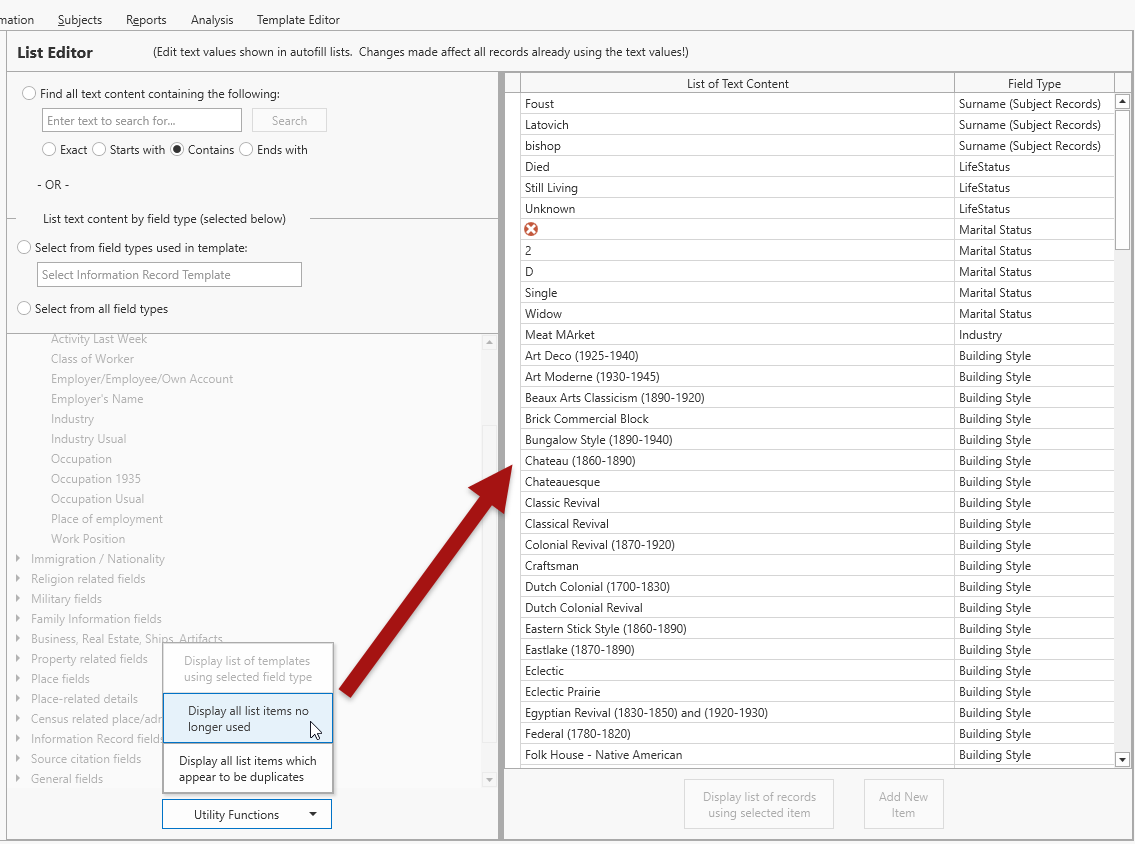
Some categories of fields have been prefilled as part of the original Clooz installation. If you delete any of these they will be permanently deleted from your database. So be careful in making your decisions as you cleanup the text lists.
Identify Duplicate Text Items
A utility function is provided to identify possible duplication in your text lists. In determining possible duplication, Clooz will treat differences in case (upper/lower) as the same. The list of text items will appear in the right panel where you can then proceed with any desired edits or merges.
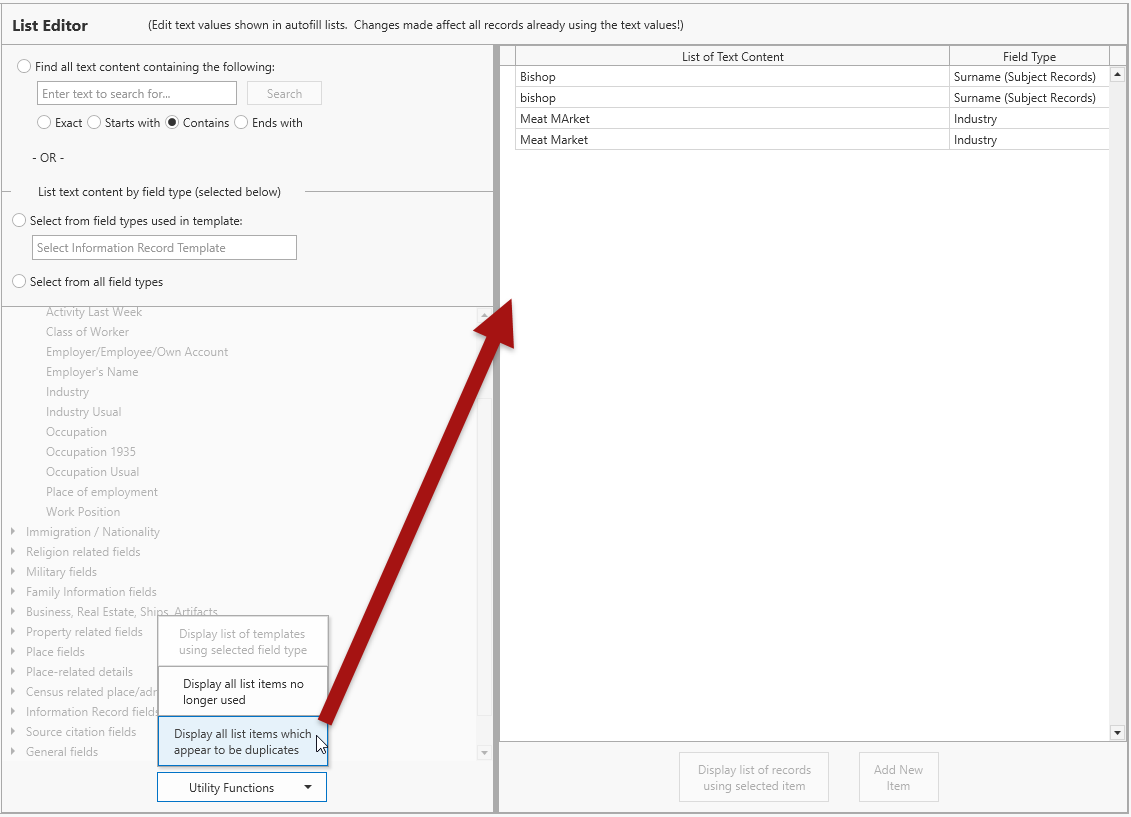
Note that independent lists are maintained for different field types. The field type in which each text item appears is listed in the right column of the text list. Only items used in the same field type can be merged.